> ## Documentation Index
> Fetch the complete documentation index at: https://docs.superglue.cloud/llms.txt
> Use this file to discover all available pages before exploring further.
# Role-Based Access Control
> Control who can view, run, edit, and share tools and systems
**Enterprise Feature** - RBAC is available on superglue Enterprise plans. [Contact
us](https://cal.com/superglue/superglue-demo) to learn more.
Role-Based Access Control (RBAC) controls who can access tools and systems in your organization.
It is designed for two everyday admin tasks:
* Give teams the right baseline access through roles.
* Share individual tools or systems with specific people when they need direct access.
RBAC applies consistently across the app, API, SDKs, schedules, and MCP. If a user or API key
cannot access a tool or one of its required systems, superglue blocks the action instead of
silently running it with broader organization access.
## Permissions
Tools and systems use two resource permissions:
| Permission | Tools | Systems |
| ---------- | -------------------------------------------------------------------- | ----------------------------------------------------------- |
| Viewer | Can see and run the tool, but cannot change or share it. | Can see and test the system, but cannot change or share it. |
| Editor | Includes viewer access, plus can edit, share, delete, and manage it. | Includes viewer access, plus can edit, share, and delete. |
Editor access always includes viewer access.
## Roles
Every member has exactly one base role:
| Base role | What it means |
| --------- | --------------------------------------------------------------------------------------------------------------- |
| Admin | Full access to all tools, systems, users, roles, API keys, and control-panel settings. The Admin role is fixed. |
| Member | Standard team-member access. Admins can edit the Member role's tool and system access. |
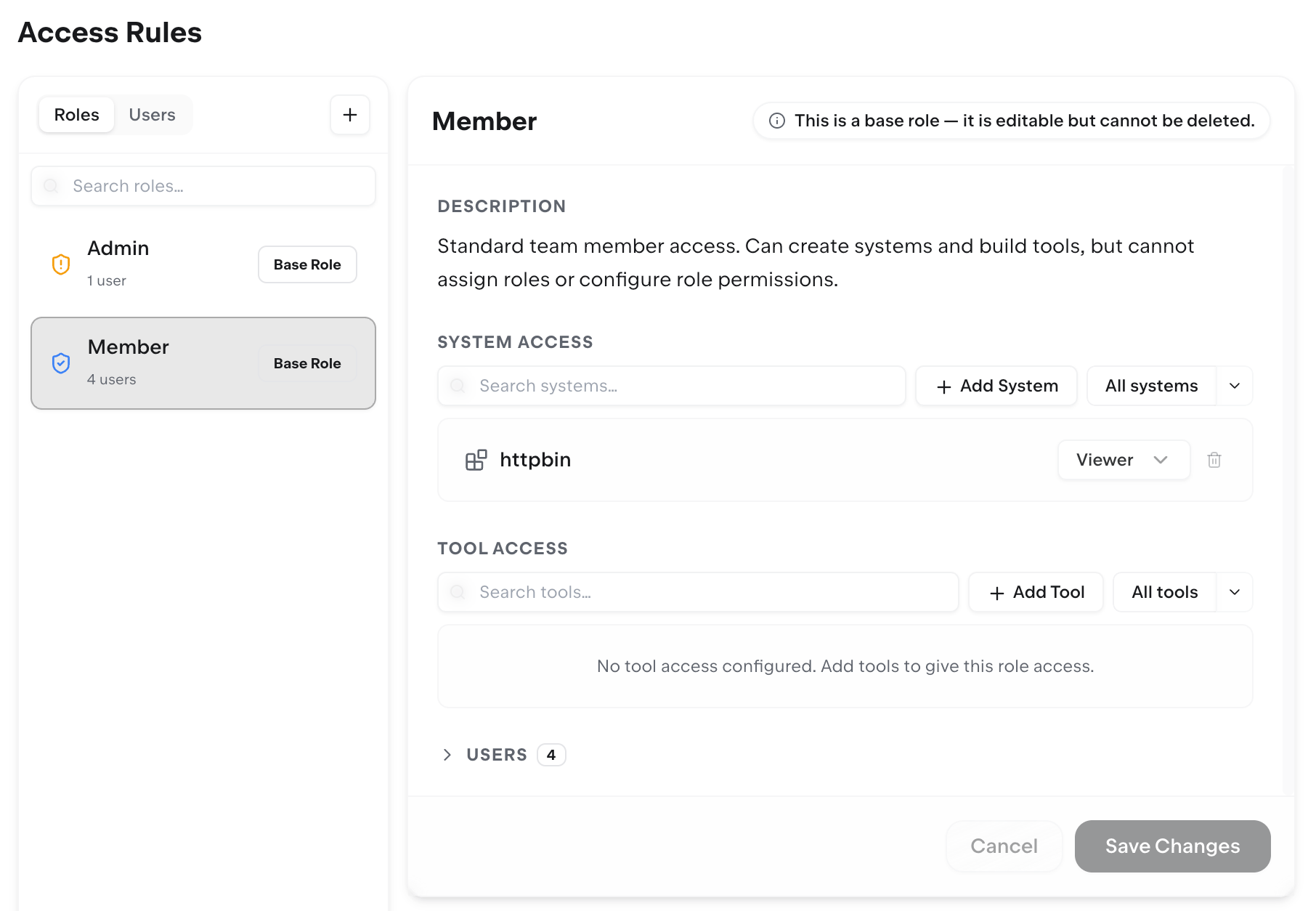
The Member role cannot be renamed or deleted, but admins can configure which tools and systems it
grants from **Control Panel -> Access Rules**.
Admins can also create custom roles for teams, departments, or environments. A custom role can grant
viewer or editor access to all tools/systems, or to specific tools/systems.
Assign base and custom roles from **Control Panel -> Organization**. Configure what each role grants
from **Control Panel -> Access Rules -> Roles**.
 ## Effective Access
A user's effective access is the combination of:
* Their base role.
* Any custom roles assigned to them.
* User-specific access from ownership, direct sharing, or admin edits in the **Users** tab.
Access is additive. If one role gives viewer access and another gives editor access, the user has
editor access. There are no deny rules that subtract access granted somewhere else.
When a user creates a tool or system, they keep owner-level editor access to it. Owner access is
shown separately in the access UI and cannot be removed from Access Rules.
## Tools And Required Systems
Tools depend on the systems they call. A user needs access to the tool and viewer access to each
required system for the tool to be visible and runnable.
When an admin adds a tool to a role in Access Rules, the UI also grants viewer access to any
required systems that role does not already have. If a role has **All tools**, those tools are still
subject to required system access.
This is why a role should usually be reviewed in pairs:
* **Tool Access** decides which tools a user can see and run.
* **System Access** decides which systems those tools are allowed to call.
## Direct Sharing
Editors, owners, and admins can share a saved tool or system with other organization members. Viewers
cannot share.
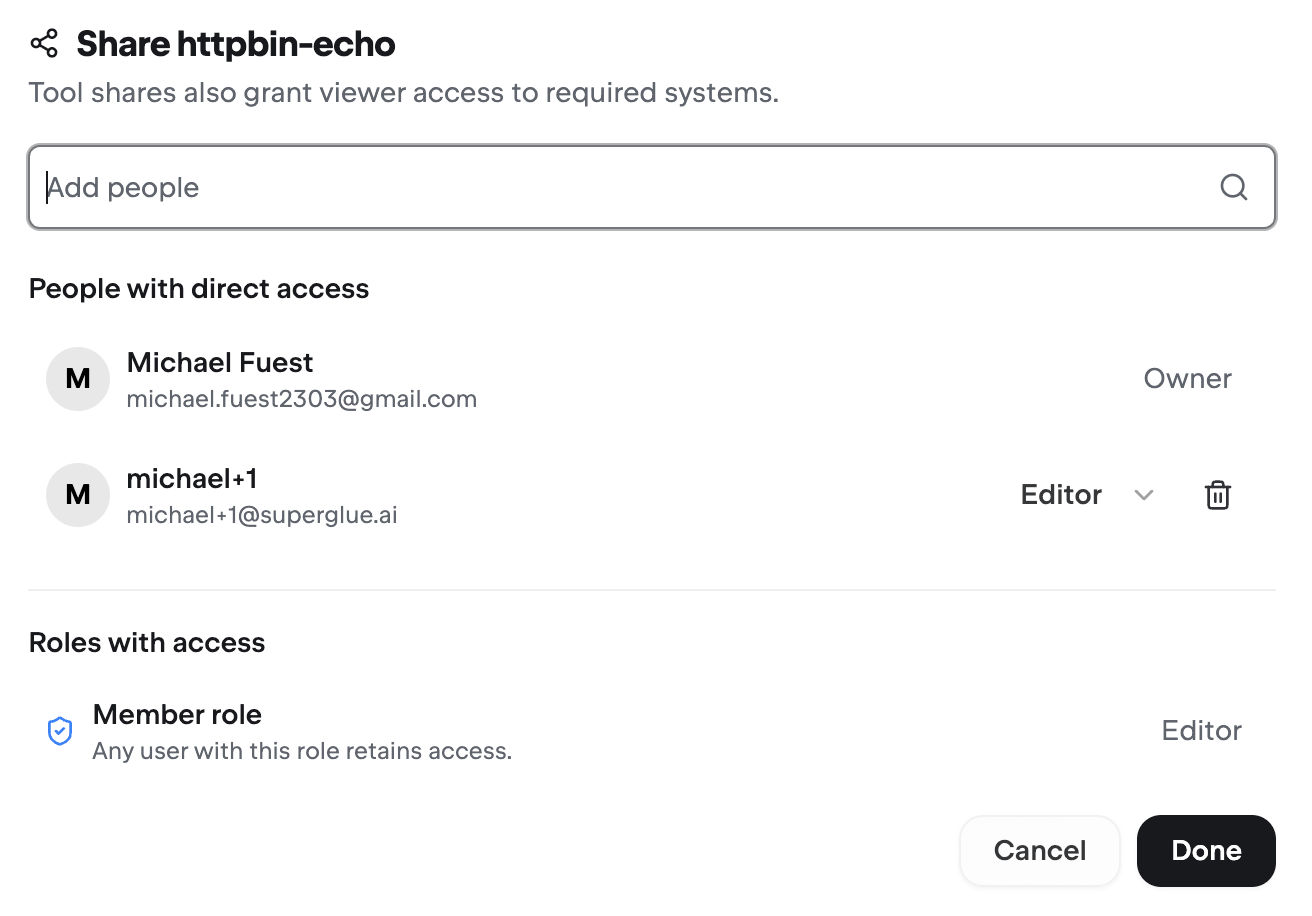
Use the **Share** button on a tool or system to give a person viewer or editor access without
changing their team's role. The dialog also shows which roles already include access, so it is clear
whether someone has access directly or through a role.
## Effective Access
A user's effective access is the combination of:
* Their base role.
* Any custom roles assigned to them.
* User-specific access from ownership, direct sharing, or admin edits in the **Users** tab.
Access is additive. If one role gives viewer access and another gives editor access, the user has
editor access. There are no deny rules that subtract access granted somewhere else.
When a user creates a tool or system, they keep owner-level editor access to it. Owner access is
shown separately in the access UI and cannot be removed from Access Rules.
## Tools And Required Systems
Tools depend on the systems they call. A user needs access to the tool and viewer access to each
required system for the tool to be visible and runnable.
When an admin adds a tool to a role in Access Rules, the UI also grants viewer access to any
required systems that role does not already have. If a role has **All tools**, those tools are still
subject to required system access.
This is why a role should usually be reviewed in pairs:
* **Tool Access** decides which tools a user can see and run.
* **System Access** decides which systems those tools are allowed to call.
## Direct Sharing
Editors, owners, and admins can share a saved tool or system with other organization members. Viewers
cannot share.
Use the **Share** button on a tool or system to give a person viewer or editor access without
changing their team's role. The dialog also shows which roles already include access, so it is clear
whether someone has access directly or through a role.
 Tool sharing is run-ready: when a tool depends on systems, superglue includes the access needed for
the recipient to run it. System access stays visible and manageable on the system itself.
Tool sharing is run-ready: when a tool depends on systems, superglue includes the access needed for
the recipient to run it. System access stays visible and manageable on the system itself.
 ## User-Specific Access
Admins can review user-specific access from **Control Panel -> Access Rules -> Users**.
The **Users** tab shows:
* Effective access: what the user can access after combining roles and user-specific access.
* Personal system access: systems granted directly to that user.
* Personal tool access: tools granted directly to that user.
Use this tab when you need to audit why a member can access something, grant a one-off exception, or
remove direct access that is no longer needed.
## Member Experience
Members only see the tools and systems they can access. When they have viewer access, the app shows a
read-only experience: they can view and run/test the resource, but editing and sharing controls are
disabled or hidden.
When a member has editor access to a tool or system, they can share it with the teammates who need
it. Admins do not need to handle every exception; roles set the durable guardrails, and editors can
manage day-to-day collaboration on the resources they own or maintain.
## Admin Workflow
For a healthy RBAC setup, admins should set durable guardrails and let resource owners handle
day-to-day sharing:
1. Configure the **Member** role for the baseline access every member should have.
2. Create custom roles for durable team access, such as Sales, Support, or Finance.
3. Use editor permissions for members who should maintain resources and decide who else needs
access.
4. Assign users to roles from **Control Panel -> Organization**.
5. Encourage editors and owners to use **Share** instead of routing every one-off access request
through an admin.
6. Periodically review **Access Rules -> Users** to confirm direct access is still intentional.
## User-Specific Access
Admins can review user-specific access from **Control Panel -> Access Rules -> Users**.
The **Users** tab shows:
* Effective access: what the user can access after combining roles and user-specific access.
* Personal system access: systems granted directly to that user.
* Personal tool access: tools granted directly to that user.
Use this tab when you need to audit why a member can access something, grant a one-off exception, or
remove direct access that is no longer needed.
## Member Experience
Members only see the tools and systems they can access. When they have viewer access, the app shows a
read-only experience: they can view and run/test the resource, but editing and sharing controls are
disabled or hidden.
When a member has editor access to a tool or system, they can share it with the teammates who need
it. Admins do not need to handle every exception; roles set the durable guardrails, and editors can
manage day-to-day collaboration on the resources they own or maintain.
## Admin Workflow
For a healthy RBAC setup, admins should set durable guardrails and let resource owners handle
day-to-day sharing:
1. Configure the **Member** role for the baseline access every member should have.
2. Create custom roles for durable team access, such as Sales, Support, or Finance.
3. Use editor permissions for members who should maintain resources and decide who else needs
access.
4. Assign users to roles from **Control Panel -> Organization**.
5. Encourage editors and owners to use **Share** instead of routing every one-off access request
through an admin.
6. Periodically review **Access Rules -> Users** to confirm direct access is still intentional.