

Use Cases
- On-premises servers behind corporate firewalls
- Cloud VPCs (AWS, Azure, GCP) without public endpoints
- Kubernetes clusters with internal-only services
- Development environments and localhost
- Any system that only allows outbound connections
- Internal REST APIs
- Databases (PostgreSQL, MSSQL, MongoDB) in private subnets
- Windows file shares (SMB) on corporate networks
- SFTP servers behind firewalls
How It Works
The gateway agent runs in your private environment and establishes an outbound WebSocket connection to superglue Cloud. When a tool needs to access a private system, superglue routes the request through the gateway.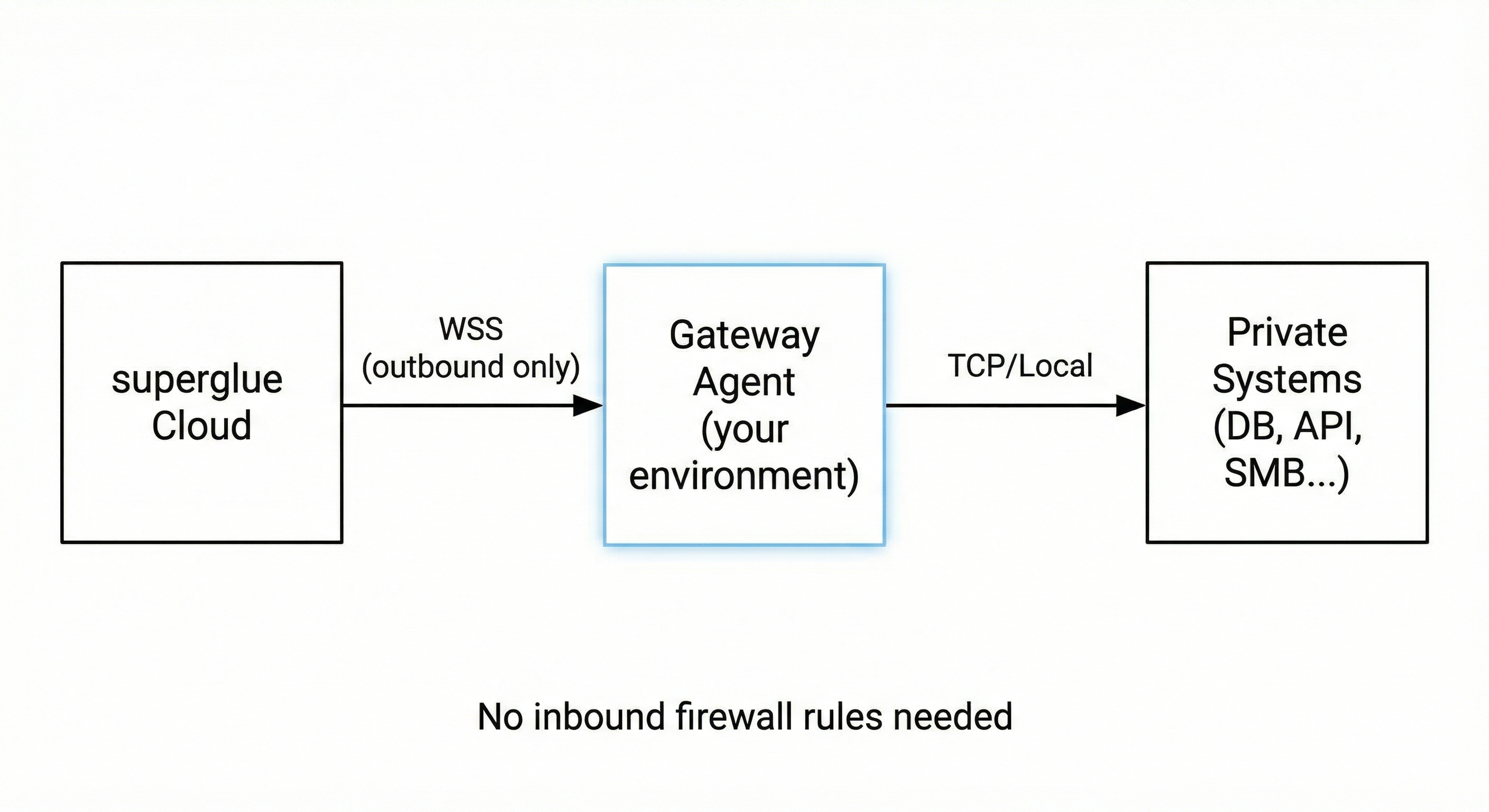
- No inbound firewall rules required
- All traffic encrypted via TLS
- Agent only exposes explicitly configured targets
- Credentials stay in your environment
Installation
Download Pre-built Binary
First, check your system architecture:- Linux x86_64 (Intel/AMD)
curl -L https://downloads.superglue.cloud/superglue-gateway-linux-x86_64 -o
Build from Source
If you prefer to build from source (requires Go 1.21+):Configuration
Create aconfig.yaml file with your settings:
- REST API
- AWS VPC
- PostgreSQL
- MSSQL / Azure SQL
- SFTP
- Multiple Targets
Configuration Options
Getting an API Key
- Log in to your superglue dashboard
- Go to Settings > API Keys
- Click Create API Key
- Copy the key and add it to your
config.yaml
Running the Agent
Manual Start
- Linux / macOS
- Windows
bash ./superglue-gateway -config /path/to/config.yaml Debug Mode
For troubleshooting connection issues, run with the-debug flag to enable verbose logging:
- Linux / macOS
- Windows
bash ./superglue-gateway -config /path/to/config.yaml -debug - WebSocket connection status and handshake details
- Incoming tunnel requests with target information
- Data channel establishment
- TCP connection attempts to local targets
- SMB protocol messages (when connecting to Windows shares)
- Bytes transferred through the tunnel
Run in Background
To run the agent in the background so it persists after closing your terminal:pgrep -a superglue-gateway. Check logs: tail -f gateway.log. Stop: pkill superglue-gateway.
Run as a systemd Service (Linux)
- Create a service file
/etc/systemd/system/superglue-gateway.service:
- Enable and start the service:
- Check status:
Run as a Windows Service
- Install NSSM (Non-Sucking Service Manager):
- Check status:
- View logs:
Run in AWS (EC2 / ECS)
For AWS VPC access, deploy the agent on an EC2 instance or ECS task within the VPC:api.superglue.cloud.
Set up your Private System in Superglue Dashboard
Once your gateway agent is running and connected:- Go to Systems in your superglue dashboard
- Click Add System and select Private System
- Select your connected gateway from the list
- Choose the target endpoint you want to use
- Configure authentication (API keys, etc.) if needed
- Add documentation for the system
- Save the system
If no gateways appear in the list, verify that: - The gateway agent is running and connected - The
API key is valid - The
tunnel_id matches what you expectTroubleshooting
Gateway won’t connect
- Verify your API key is correct
- Check that outbound WebSocket connections (port 443) are allowed
- Ensure the
server_urlis correct for your superglue instance
Target connection fails
- Verify the target address is reachable from the gateway host
- Check firewall rules / security groups between the gateway and target
- Test connectivity:
nc -zv <target-host> <port>
Connection drops frequently
- Check network stability between gateway and superglue cloud
- Review gateway logs for specific error messages
- Ensure no proxy/firewall is terminating idle connections
Security Considerations
- The gateway only exposes explicitly configured targets
- All traffic is encrypted via TLS (WebSocket Secure)
- The gateway initiates outbound connections only (no inbound ports needed)
- API keys should be kept secure and rotated periodically
- Consider running the gateway with minimal privileges
- In AWS, use IAM roles and security groups to restrict gateway access